
OnePlus
OxygenOS 12.1 H.30 & F.17 Update for the OnePlus 7 and 7T Series Includes System Optimizations

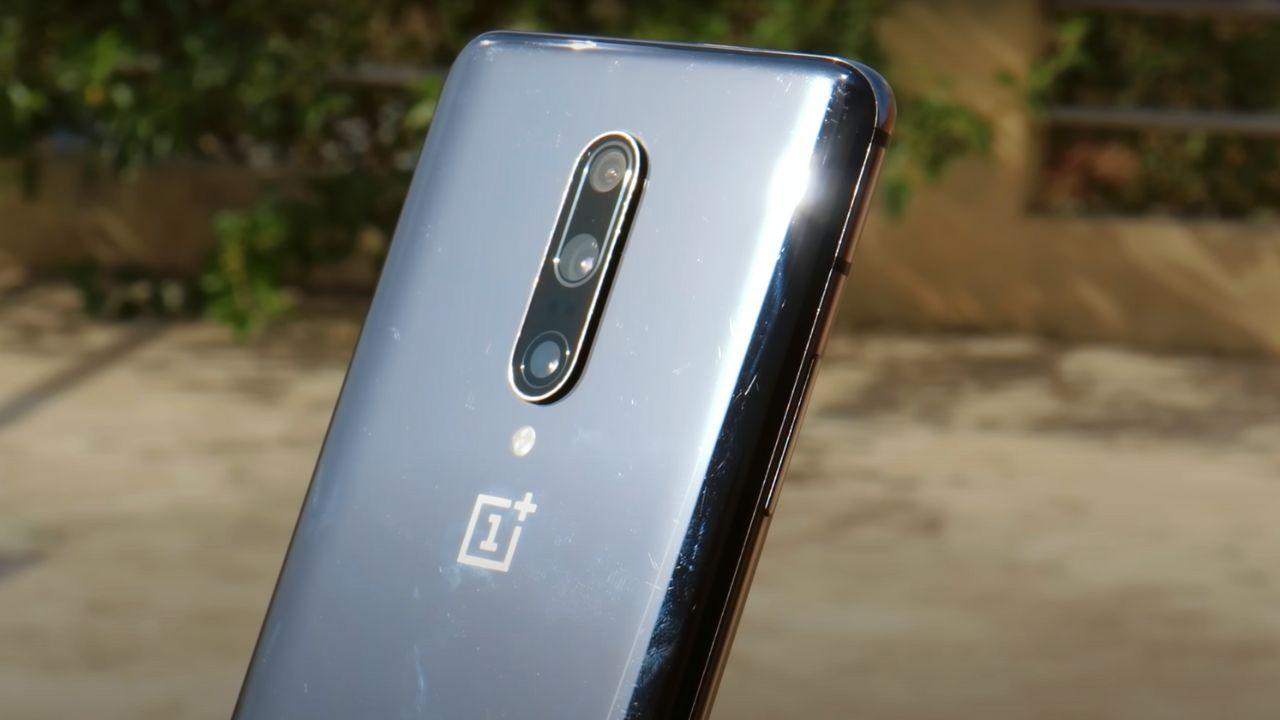
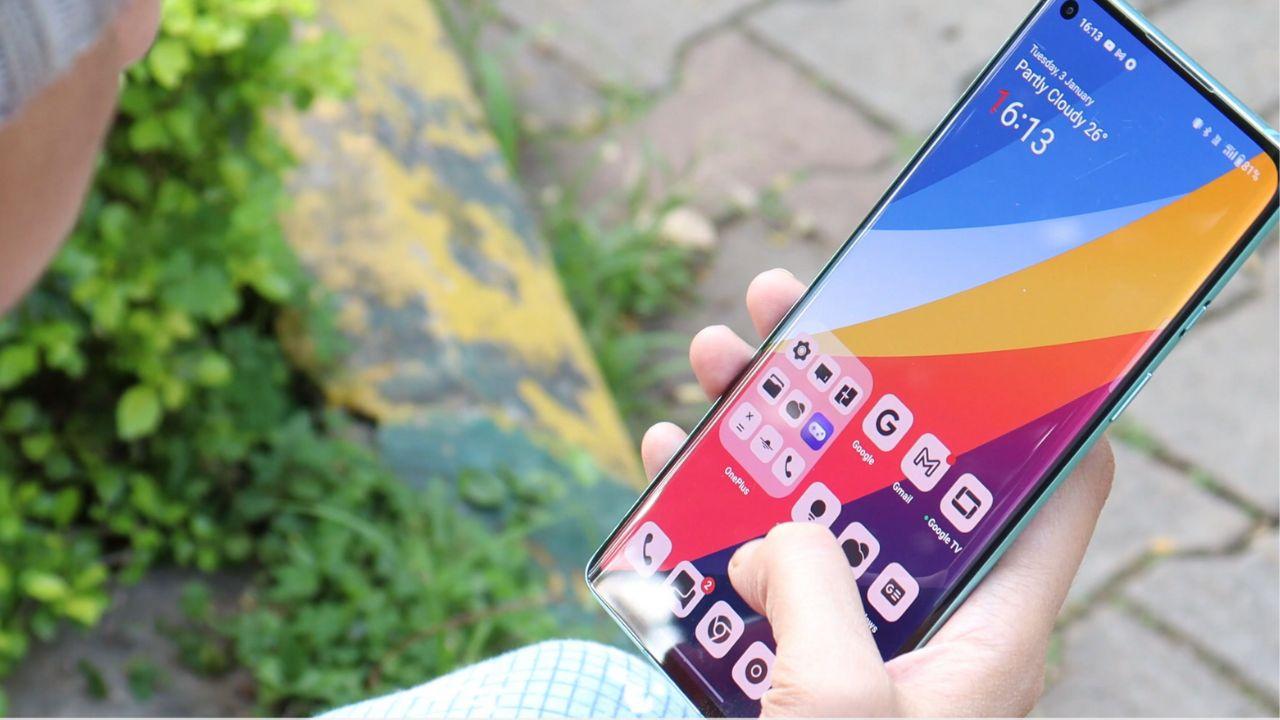
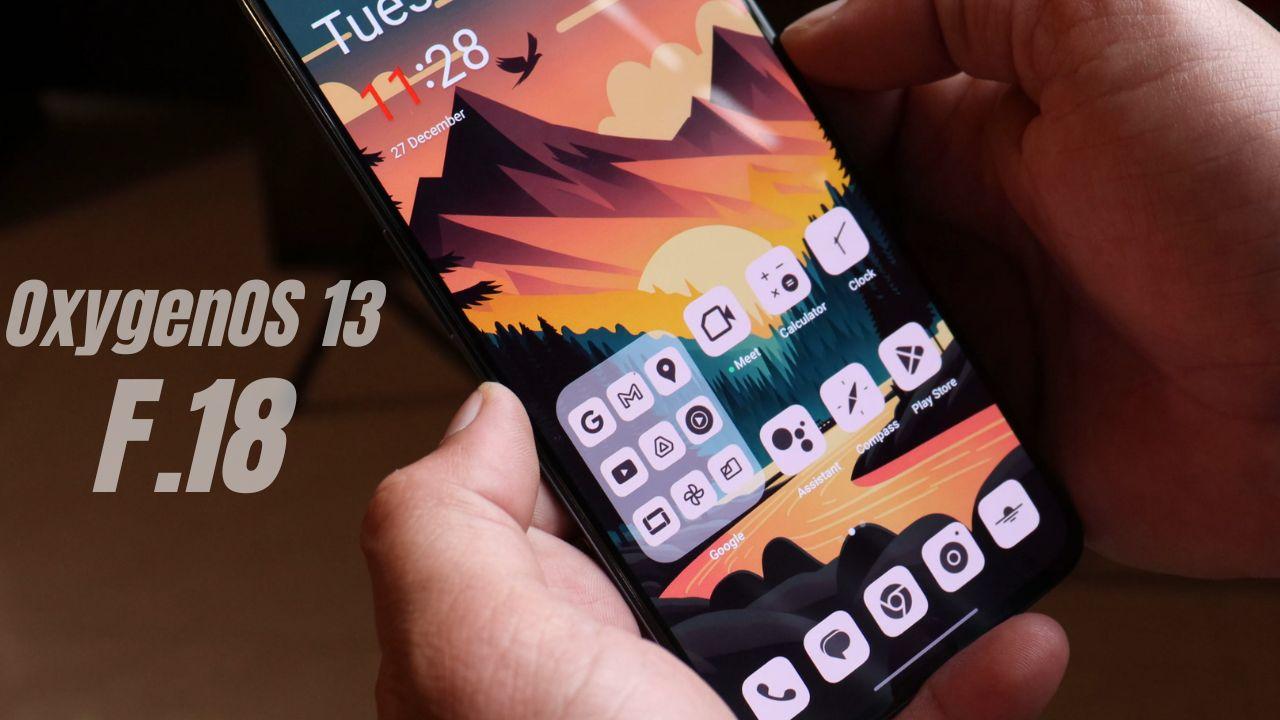
This month has been exciting for Oneplus 7 & 7T Series users Oneplus finally released the most awaited OxygenOS 12.1 Stable build for Oneplus 7 & 7T & today, OxygenOS 12.1 H.30 & F.17 Update is rolling out for the OnePlus 7 and 7T Series Includes System Optimizations.
My name is Ashok, and my YouTube handle is Techibee. In addition to writing blogs for the past four years, I’ve been making videos for YouTube for the past six. Today will tell you guys what’s new on OxygenOS 12.1 H.30 & F.17 for the Oneplus 7 & 7T series.
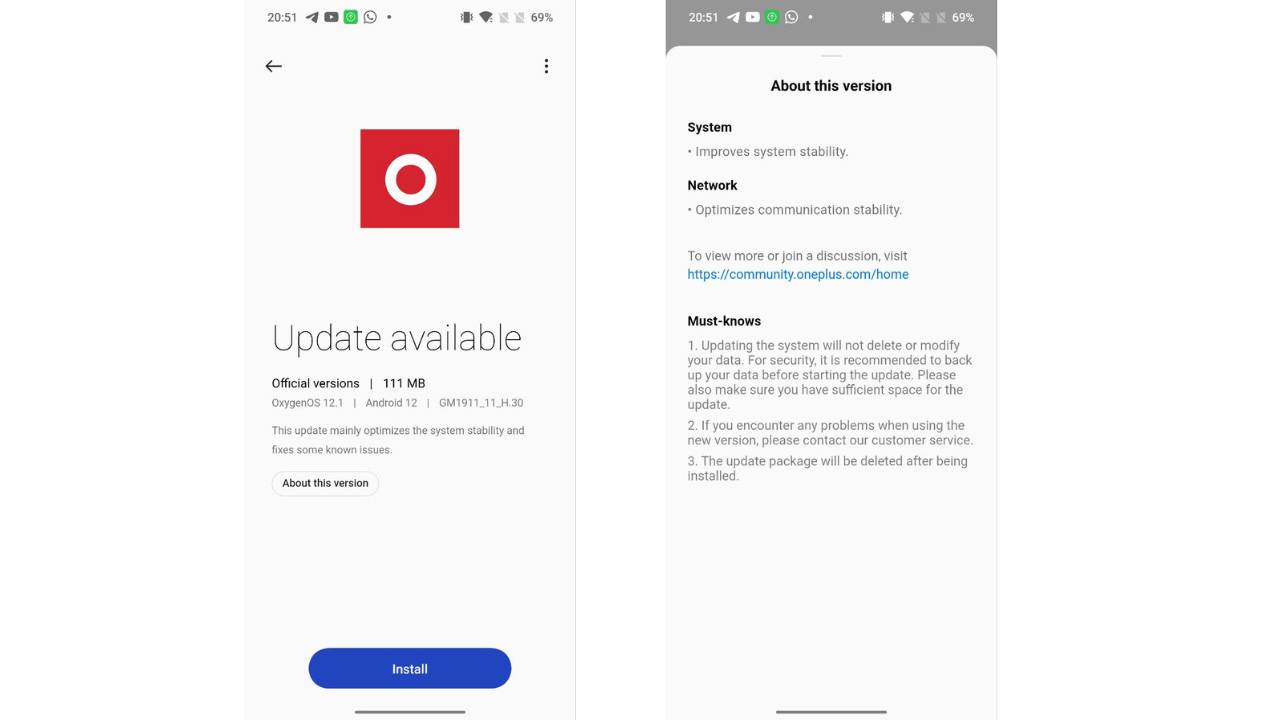
This most recent software update for the OnePlus 7 and OnePlus 7T, according to the source, has OxygenOS 12.1 build codes HD1901 11 F.17 and GM1901 11 H.30, respectively. Users will need to download this most recent update, which is 105 MB in size overall and 73.52 MB in total.
Changelogs of Second Stable OxygenOS 12.1
System
- Improve system stability
Network
- Optimized communication stability
OnePlus 7T OxygenOS F.17 Changelog:
System
- This Update mainly optimized the system stability and fixed some Known issues
Download Stable OxygenOS 12 for the OnePlus 7 and 7T series
After obtaining the correct package for your model from the index below, you may manually sideload the update onto your device or wait for it to be picked up on the staged rollout. As additional download links become available, we’ll keep updating this article.
- OnePlus 7
- India (GM1901_11.H.30)
- Europe (GM1903_11.H.30)
- Global (GM1903_11.H.31)
- OnePlus 7 Pro
- India (GM1911_11.H.30)
- Europe (GM1913_11.H.30)
- Global (GM1913_11.H.31)
- OnePlus 7T
- India (HD1901_11.F.17)
- Full (for OOS 12 users)
- Full (for OOS 11 users)
- Europe (HD1903_11.F.17)
- Global (HD1903_11.F.17)
- India (HD1901_11.F.17)
- OnePlus 7T Pro
- India (HD1911_11.F.17)
- Full (for OOS 12 users)
- Full (for OOS 11 users)
- Europe (HD1913_11.F.17)
- Global (HD1913_11.F.17)
- India (HD1911_11.F.17)
If you like our article then follow us on Google news, and Instagram, or join our Telegram Group. For the latest TechNews and Reviews, follow Techibee on Twitter and Facebook, and subscribe to our Youtube channel.
For More Such Updates Follow Us On – Telegram, Twitter, Google News, WhatsApp and Facebook




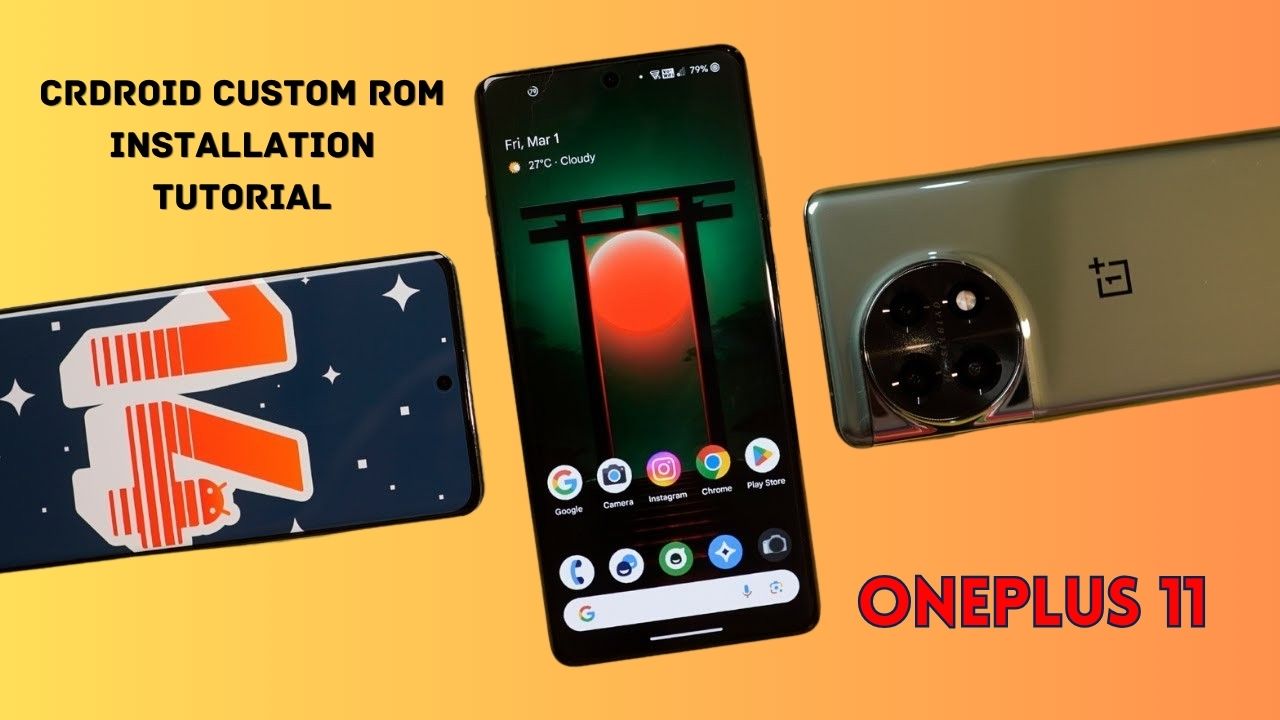
Yesterday, we posted a review video of crDroid Custom ROM on our YouTube Channel. After that, some users asked us for the installation post for that. So, here we come with a post in which we will tell you how you can install Custom ROM on OnePlus 11. You can also follow this post, even if you are installing Custom ROM for the first time as this is an easy and step-by-step guide. In this, we are particularly talking about the crDroid ROM for OnePlus 11.
Prerequisite:
- First, you have to unlock the Bootloader of your phone. So, for that, you have to Download the files that are listed below:
- Note: If you unlock your bootloader, then all your data will be wiped. So, make sure to take the entire backup of your phone.
- OnePlus USB Drivers: Download from Telegram // Mega
- ADB + Platform Tools Folder: Telegram
- OrangeFox Recovery OnePlus 11: Download
- crDroid 10 Custom ROM OnePlus 11 (A14): Download (copy this file in your P.C.)
- Install all these three one by one.
- After installing, you have to enable developer options on your phone.
- To enable developer options, you have to click on Build Number 7 times. (Settings > About Device > Version).
- After that, you have to go back and click on Additional Settings > Developer Options.
- In Developer Options, you have to enable OEM Unlocking and USB Debugging.
- Then, you have to follow this video or this post to properly install ADB and Fastboot Drivers.
- Then, you have to install OnePlus Drivers.
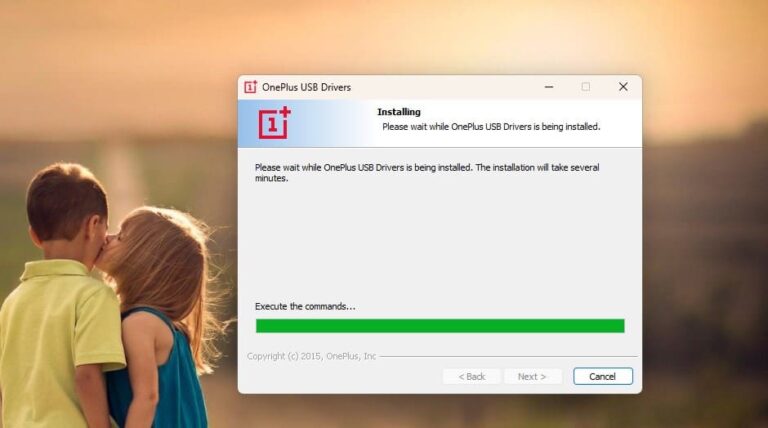
- After installing ADB and Fastboot Drivers, you have to open the Platform Tools folder.
- In this folder, you have to open the terminal or command prompt by typing cmd in the Address Bar and hit enter.
- Then, connect your phone to your PC.
- After that type adb devices Command Prompt or Terminal and hit enter.
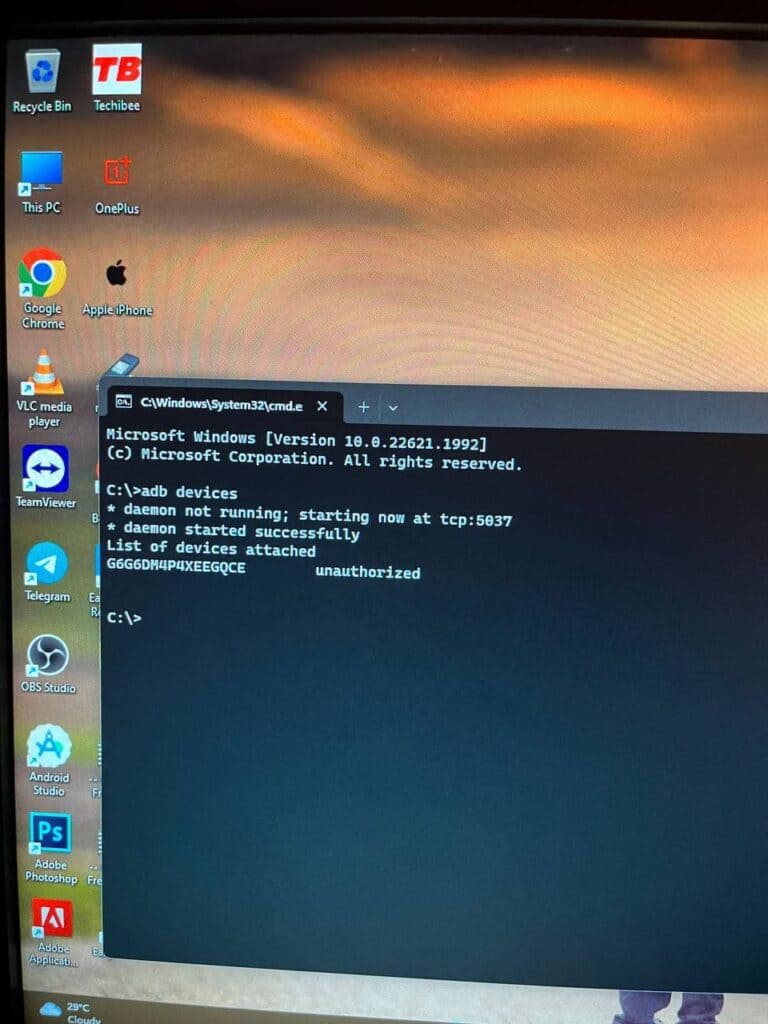
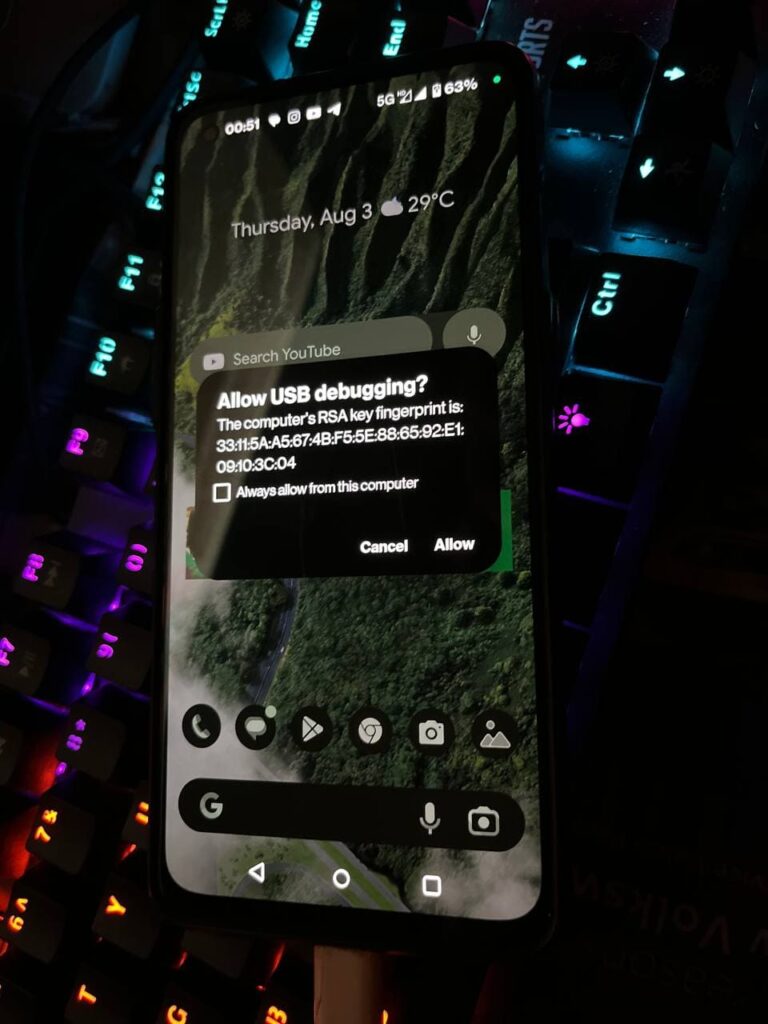
- As you type this command on your PC. You will get a pop-up on your phone. You have to click on allow as shown in the image listed below:
- Then, type adb reboot bootloader.
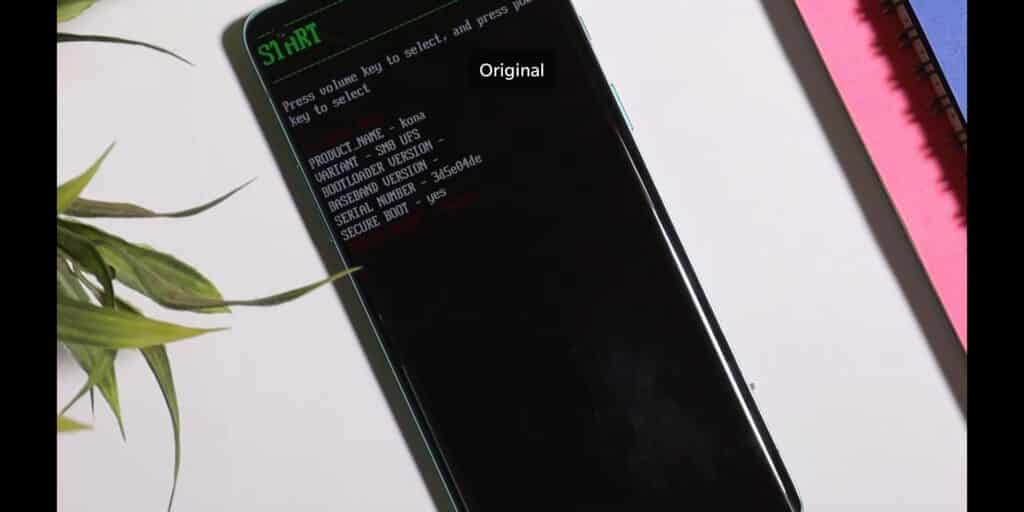
- Later on, type fastboot devices. If a serial number is shown then your device is properly connected. But if a serial number is showing, then you have to install adb and fastboot drivers properly.
Note: If your device is not detected in fastboot, then you have to update your fastboot drivers from the link given below:
Download Fastboot Drivers Zip: Telegram
- Then, type another command, Fastboot flashing unlocking.
- After typing fastboot flashing unlocking command, you have to Navigate with the volume buttons and Press accept to unlock the bootloader with the Power button.
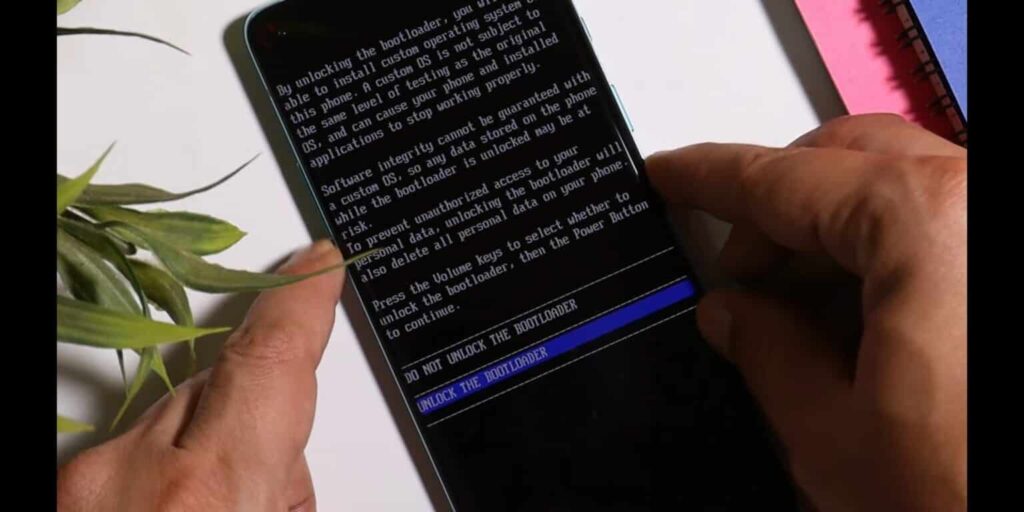
Note: If you unlock your bootloader, then all your data will be wiped. So, make sure to take the entire backup of your phone.
- After unlocking your phone, you have to flash custom recovery.
- So, again put your phone into fastboot/ bootloader mode.
- Then, in the Platform Tools folder, you have to open the terminal or command prompt by typing cmd in the Address Bar and hit enter.
- After that, you have to type a command in Command Prompt/ Terminal which is fastboot devices.
- Then, you have to type fastboot flash recovery (drag the recovery image file) and hit enter.
- Later on, type fastboot reboot recovery. After typing this command, your phone boots into OrangeFox Custom Recovery.
- Now, we have to sideload the Custom ROM file. So, for that, you have to click on the Menu toggle (last toggle) which is present on the bottom right.
- Then, tap on the ADB Sideload. After that, you have to type one last command by keeping the device connected to the PC which is adb sideload (drag the Custom ROM file), and hit enter.
Note: After flashing Custom ROM, you have to format user data. So, for that head to the Menu of the recovery. Then, Manage Partitions > Data > Format Data > type yes.
After that click on reboot system.
Then, you are good to go.
Note: Do keep in mind we (Team Techibee) are not responsible for any kind of bricked or damaged device. So, do it at your own risk.
If you guys facing any issues while installing crDroid custom ROM on your OnePlus 11, then do let us in the comment box or ask us on our Telegram group. Also, do let us know in the comment box, whether you like this post or not.
For More Such Updates Follow Us On – Telegram, Twitter, Google News, WhatsApp and Facebook

As we already know, the OnePlus upcoming flagship Watch 2 is going to be launched tomorrow at MWC 2024 (Mobile World Congress). If you want to know about the specifications, then do consider this post. Additionally, if you want to know about the color variants and some features of the Watch 2, then consider this post.
OnePlus Watch 2 Price Leaked Before Launch
Recently, the price of the upcoming OnePlus Watch 2 has been leaked. Ishan Aggarwal, a popular tipster, has recently posted a thread on their X (formerly Twitter) account. According to Tipster, the price of the upcoming OnePlus Watch 2 will be:
- India: Rs.24,999
- US: $299
- Europe: €329
- UK: £299
As we already said the OnePlus Watch 2 will be launched in India at the same time as it is launched globally. Do you guys think that it can compete with the Samsung Galaxy Watch 6? Also, do let us know, whether you consider the OnePlus Watch 2 at this price in the comment box.
For More Such Updates Follow Us On – Telegram, Twitter, Google News, WhatsApp and Facebook
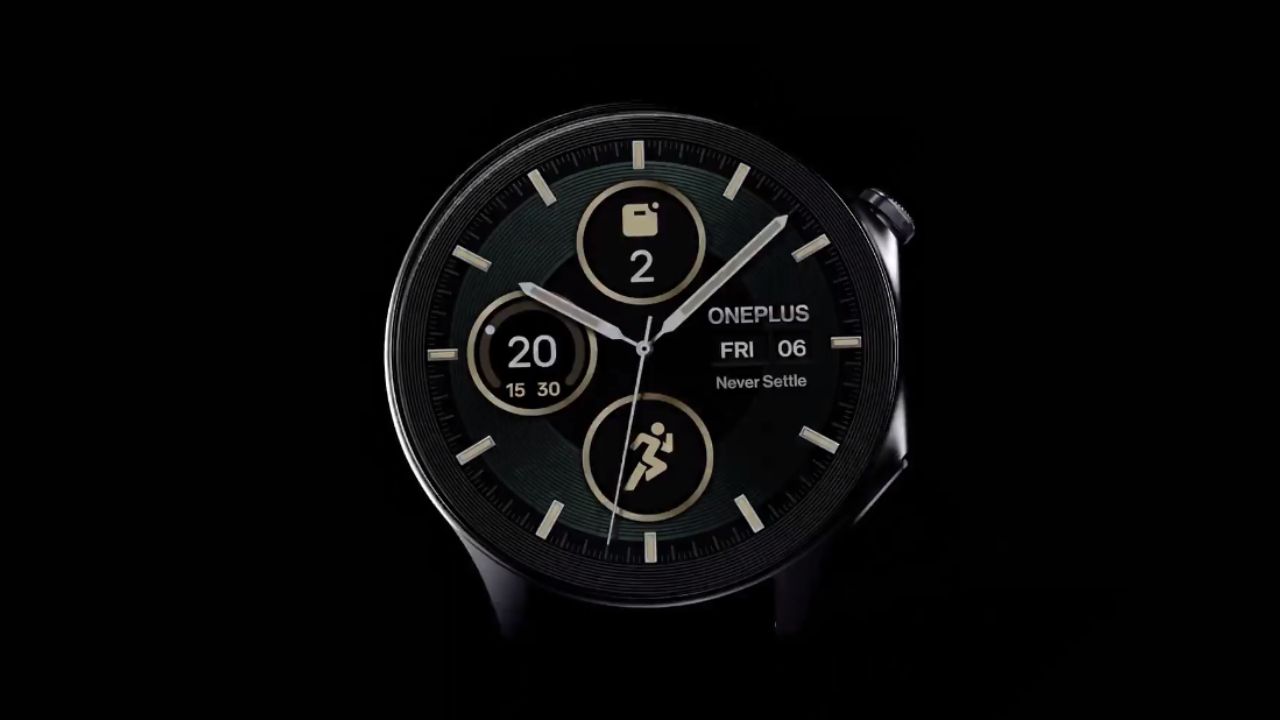
The upcoming OnePlus Watch 2, which is a flagship watch from OnePlus is going to be introduced at MWC (Mobile World Congress) on 26 February, this month at (8:30 P.M. IST). OnePlus Watch 2 will be a successor to OnePlus Watch.
If we talk about the specifications and other details then, consider this post. The tagline of the Watch 2 is “It’s time to do it right!”. It is a flagship watch from OnePlus which debuted three years after the launch of the OnePlus Watch.
Pre-Reservation Benefits of OnePlus Watch 2
The OnePlus Watch 2 page is available on the OnePlus India Website. If you Pre-Reserve for the OnePlus upcoming Watch 2, then you will get Rs. 1000 off on the OnePlus Watch 2 and a free Bullets Wireless Z2 ANC. You can purchase a Pre-Reservation pass at Rs. 99 by clicking here.

OnePlus Watch 2 will be available in two colors i.e. Black Steel and Radiant Steel colour options. Watch 2 also features Military-grade Durability. The announcement post as well as the YouTube short video which is posted on the official YouTube channel highlighted that Watch 2 features that the watch is built with stainless steel and sapphire crystal.
The company said that the OnePlus Watch 2 will offer As per the information, the OnePlus Watch 2 has up to 100 hours of battery life in “full Smart Mode”. If it is true, then it will be more than Apple’s Watch Series 9. Moreover, a landing page for the OnePlus Watch 2 is already created on Amazon’s India Website which confirms that the Watch 2 will be available in India at the same time as during global launch.
The tagline of the OnePlus Watch 2 is “Your Partner in Time”. As mentioned in the video, this is a flagship watch from OnePlus which is built with s
Have you guys pre-reserved for the OnePlus Watch 2 or going now to pre-reserve? Do let us know in the comment box. Also, tell us whether you like this post or not.
For More Such Updates Follow Us On – Telegram, Twitter, Google News, WhatsApp and Facebook