
How to
How To Fix Qualcomm Crashdump Mode in All Oneplus Smartphones – Step by Step guide Easy fix

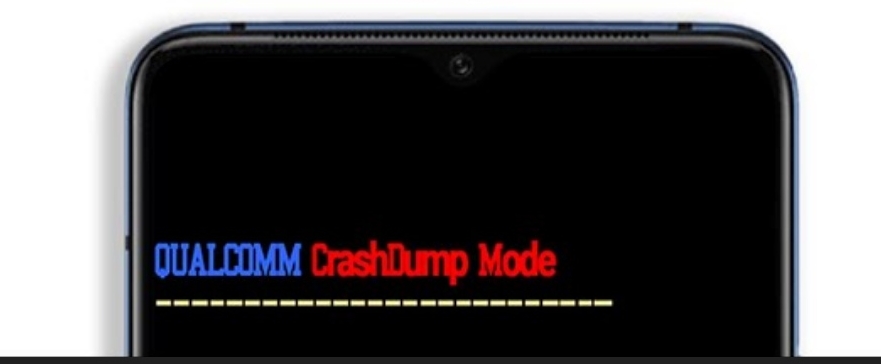
Whenever we flash a custom rom or GSI without Knowing and following the Actual process and files , we encounter this Qualcomm Crashdump Mode. This means the device has No files to Boot in both A and B partition.
Sometimes people will encounter this even after updating to new software via Official ota updates.
This is just a State where Device is bricked. But there are some easy fixes you can do to Boot the device. Do this fixes in home instead of Going to Service centre and lose Money.
All you need to do is Don’t panic and have a PC near you which has atleast windows 7 ultimate.
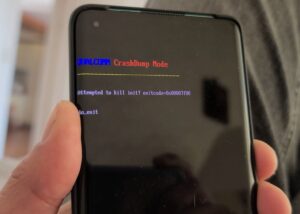
1. KEY COMBINATION METHOD :-
This is just a simple method and works only if you have a Rom present in either each one of the slot partitions .
Just press – Volume up+down both & and power button Also .
All the three buttons should be long pressed at once for atleast 30sec – 1minute Until you see FastBoot screen like this. Press start and it will boot.
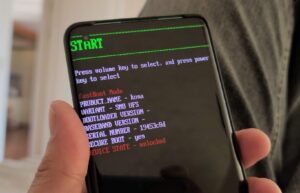
Try this method for 2-3 times for cross checking.
If this method Doesn’t work. It means there is no Rom in either if the Device partitions.
Then follow this Msm unbrick Tool method using PC.
2. MSM UNBRICK TOOL METHOD:-
First install all the necessary drivers in your PC .
ALL Drivers – LINK
Download the msm unbrick tool according to your Device model and variant here .
All msm tools – LINK
This Process is better understood in video than explaining you in words .
So watch this video from 5:40 minutes to understand better.
MSM UNBRICK METHOD – VIDEO
If you can’t able to do the process or You didn’t understand a thing and confused , we recommend you anytime visit service centre. But in service centre They also do this Msm process or they will simply say Motherboard Change and can charge
1k – 10k rupees .
SO, try these methods multiple times and fix your Crashdump Mode before Visiting service centre.
You can Anytime visit our Telegram group and Ask queries or doubts – link
If you like our article then follow us on Google news, and Instagram, or join our Telegram Group. For the latest TechNews and Reviews, follow Techibee on Twitter and Facebook, and subscribe to our Youtube channel.
For More Such Updates Follow Us On – Telegram, Twitter, Google News, WhatsApp and Facebook



Yesterday, we posted a review video of crDroid Custom ROM on our YouTube Channel. After that, some users asked us for the installation post for that. So, here we come with a post in which we will tell you how you can install Custom ROM on OnePlus 11. You can also follow this post, even if you are installing Custom ROM for the first time as this is an easy and step-by-step guide. In this, we are particularly talking about the crDroid ROM for OnePlus 11.
Prerequisite:
- First, you have to unlock the Bootloader of your phone. So, for that, you have to Download the files that are listed below:
- Note: If you unlock your bootloader, then all your data will be wiped. So, make sure to take the entire backup of your phone.
- OnePlus USB Drivers: Download from Telegram // Mega
- ADB + Platform Tools Folder: Telegram
- OrangeFox Recovery OnePlus 11: Download
- crDroid 10 Custom ROM OnePlus 11 (A14): Download (copy this file in your P.C.)
- Install all these three one by one.
- After installing, you have to enable developer options on your phone.
- To enable developer options, you have to click on Build Number 7 times. (Settings > About Device > Version).
- After that, you have to go back and click on Additional Settings > Developer Options.
- In Developer Options, you have to enable OEM Unlocking and USB Debugging.
- Then, you have to follow this video or this post to properly install ADB and Fastboot Drivers.
- Then, you have to install OnePlus Drivers.
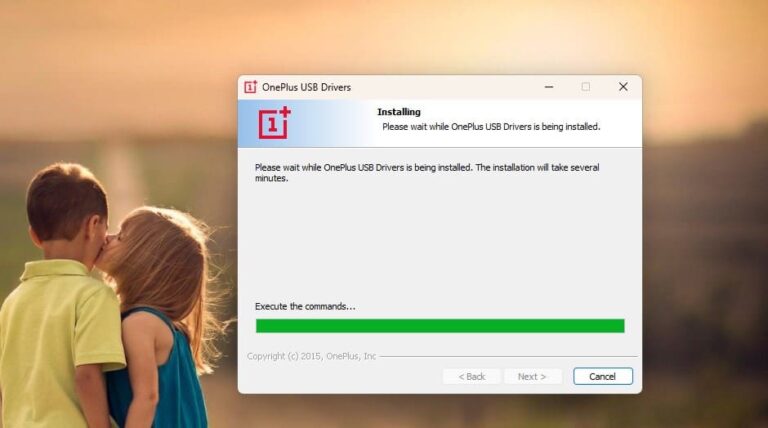
- After installing ADB and Fastboot Drivers, you have to open the Platform Tools folder.
- In this folder, you have to open the terminal or command prompt by typing cmd in the Address Bar and hit enter.
- Then, connect your phone to your PC.
- After that type adb devices Command Prompt or Terminal and hit enter.
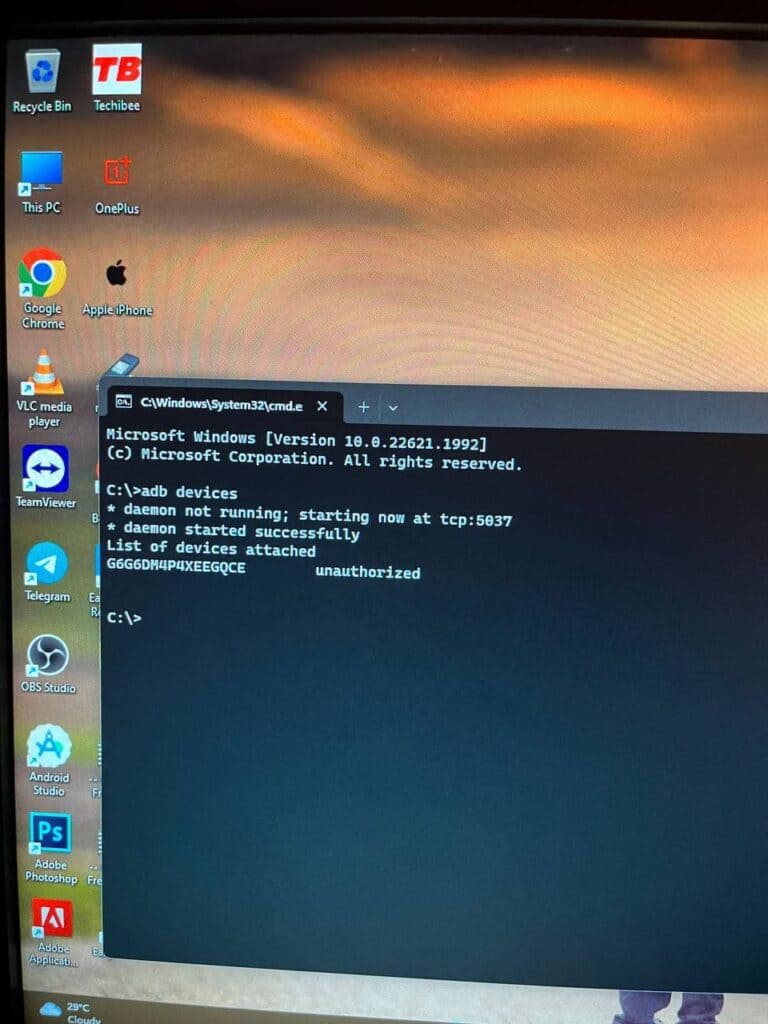
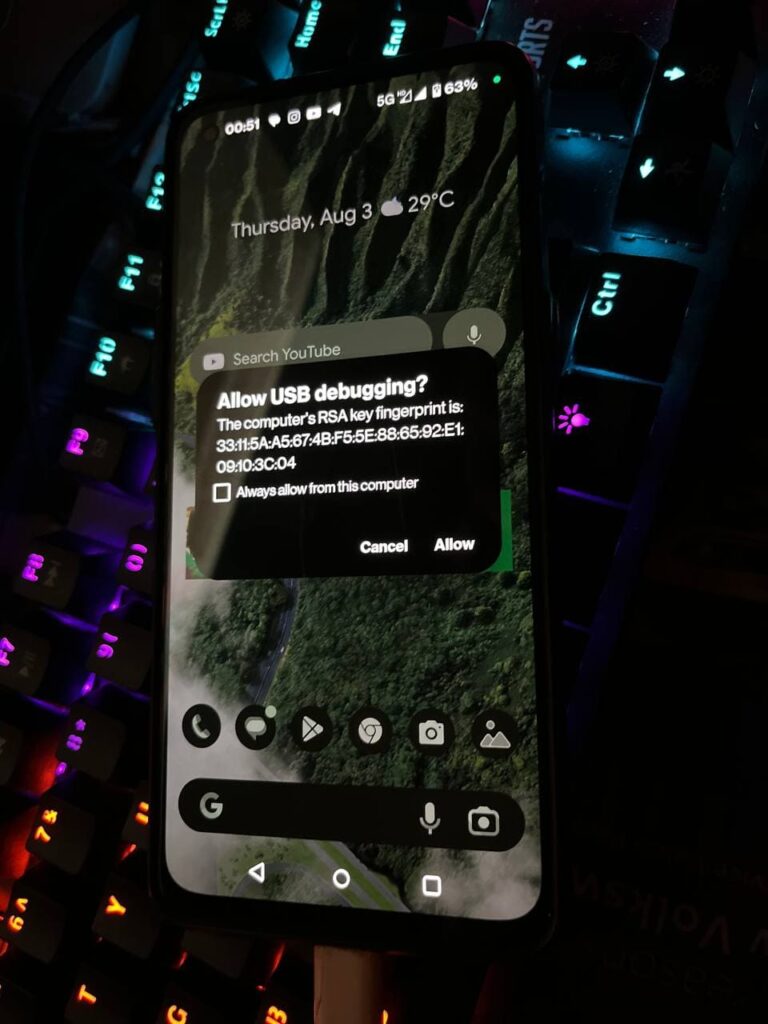
- As you type this command on your PC. You will get a pop-up on your phone. You have to click on allow as shown in the image listed below:
- Then, type adb reboot bootloader.
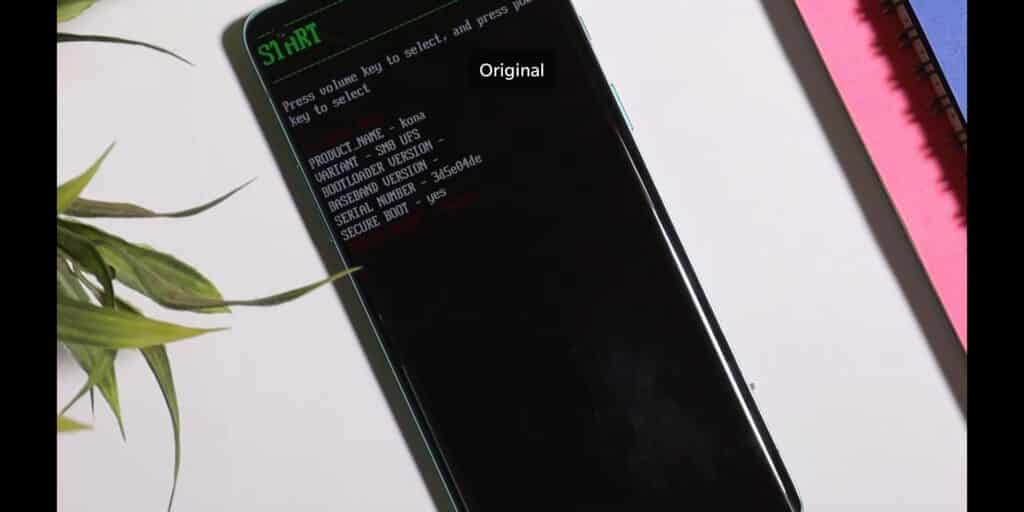
- Later on, type fastboot devices. If a serial number is shown then your device is properly connected. But if a serial number is showing, then you have to install adb and fastboot drivers properly.
Note: If your device is not detected in fastboot, then you have to update your fastboot drivers from the link given below:
Download Fastboot Drivers Zip: Telegram
- Then, type another command, Fastboot flashing unlocking.
- After typing fastboot flashing unlocking command, you have to Navigate with the volume buttons and Press accept to unlock the bootloader with the Power button.
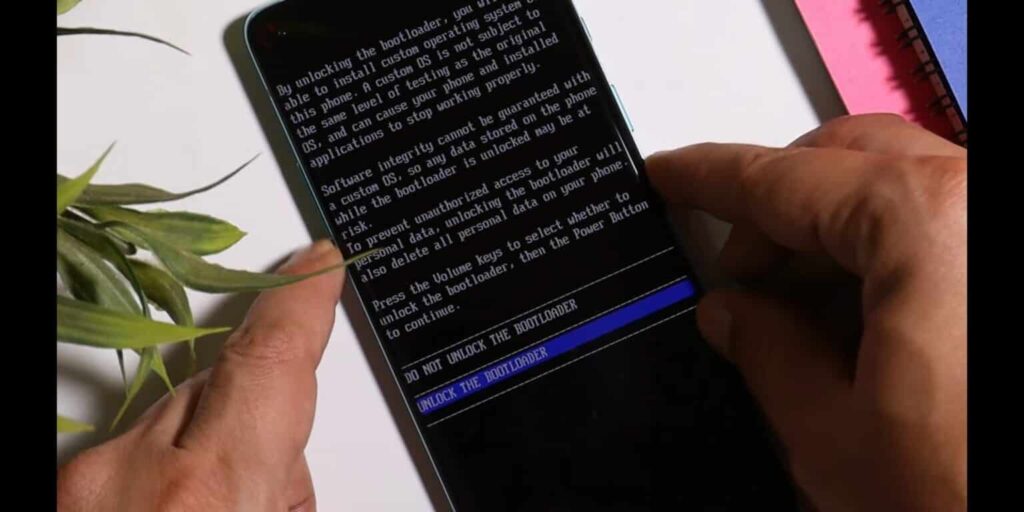
Note: If you unlock your bootloader, then all your data will be wiped. So, make sure to take the entire backup of your phone.
- After unlocking your phone, you have to flash custom recovery.
- So, again put your phone into fastboot/ bootloader mode.
- Then, in the Platform Tools folder, you have to open the terminal or command prompt by typing cmd in the Address Bar and hit enter.
- After that, you have to type a command in Command Prompt/ Terminal which is fastboot devices.
- Then, you have to type fastboot flash recovery (drag the recovery image file) and hit enter.
- Later on, type fastboot reboot recovery. After typing this command, your phone boots into OrangeFox Custom Recovery.
- Now, we have to sideload the Custom ROM file. So, for that, you have to click on the Menu toggle (last toggle) which is present on the bottom right.
- Then, tap on the ADB Sideload. After that, you have to type one last command by keeping the device connected to the PC which is adb sideload (drag the Custom ROM file), and hit enter.
Note: After flashing Custom ROM, you have to format user data. So, for that head to the Menu of the recovery. Then, Manage Partitions > Data > Format Data > type yes.
After that click on reboot system.
Then, you are good to go.
Note: Do keep in mind we (Team Techibee) are not responsible for any kind of bricked or damaged device. So, do it at your own risk.
If you guys facing any issues while installing crDroid custom ROM on your OnePlus 11, then do let us in the comment box or ask us on our Telegram group. Also, do let us know in the comment box, whether you like this post or not.
For More Such Updates Follow Us On – Telegram, Twitter, Google News, WhatsApp and Facebook
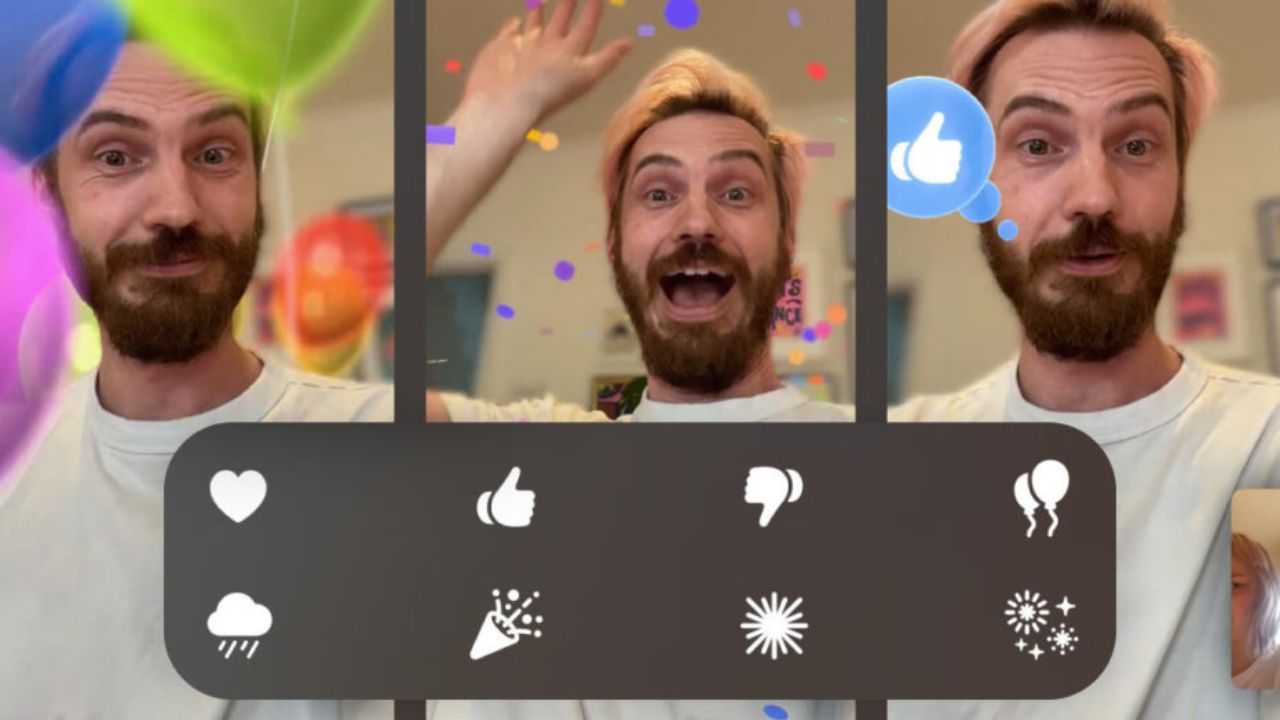
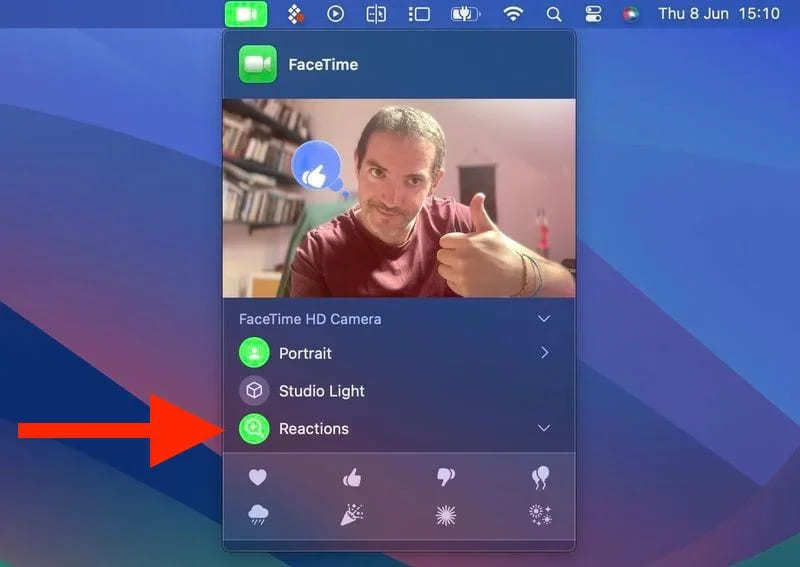
With its latest iOS 17, iPadOS 17.4, and macOS 17.4 (Sonoma), Apple has introduced 8 hand gestures during video calls in the FaceTime app and other video conferencing apps, which lets you fill your screen with 3D effects. For eg. if you make a heart by joining hands, then you will see that the floating red hearts will arise from the center of your hands as shown in the image below:
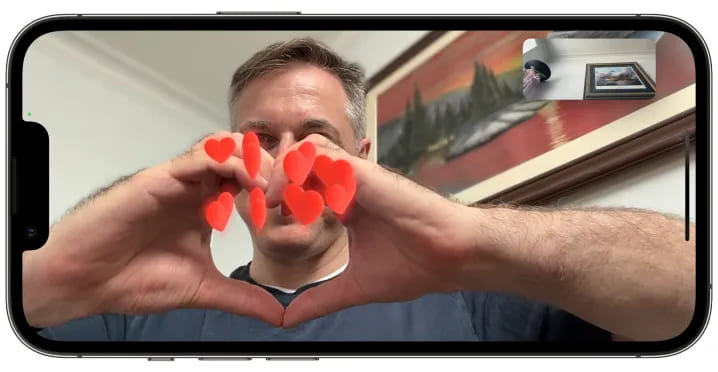
As most of the users don’t know that this feature is enabled by default. But sometimes, it creates awkward and embarrassing moments during some important video calls such as business meetings, online therapy, online classes, etc.
Luckily, Apple has come up with a solution for this. Along with the new iOS 17.4 (stable) and iPadOS 17.4 (stable), which is going to be launched by next month i.e. March 2024, Apple is going to release a new API (Application Programming Interface) that allows video conferencing apps to turn off the gesture-based reactions by default in their apps as said by MacRumors Contributor Aaron Perris. Until now, it’s not confirmed whether this API will also be accessible in macOS 14.4.
How to turn off Gesture-based Reactions (FaceTime)
1. On an iPhone or iPad:
- First, you have to open FaceTime on your iPhone or iPad.
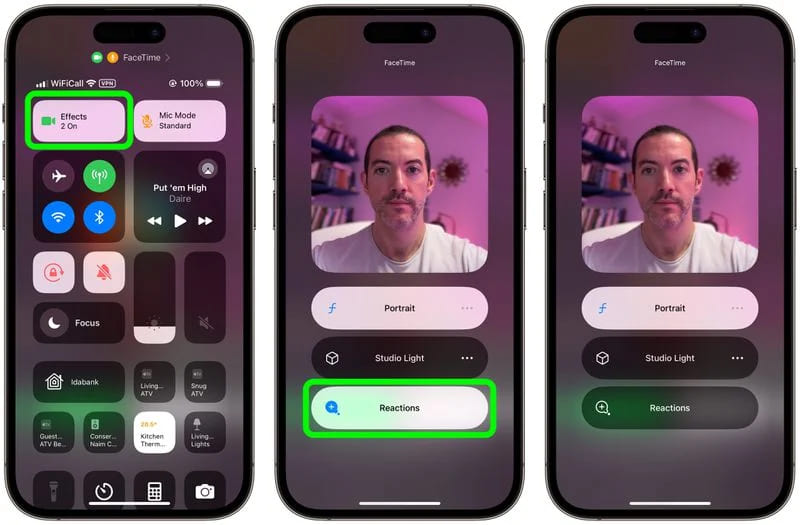
- Then, swipe down from the top-right corner of the screen to see Control Center.
Note: If you have a Touch ID-based iPhone/ iPad, then Swipe up from the bottom to see Control Center.
- Then, you have to tap on the Effects button which is present in the top-left corner.
- After that, tap on the Reactions button.
- At last, swipe up twice (2 times) to return to FaceTime.
2. On a MacBook or iMac: To turn off FaceTime reactions on a MacBook or iMac, running macOS Sonoma, you have to click on the Reactions button which is present in the FaceTime menu bar.
Do you already know guys, how to disable FaceTime reactions in iOS, iPadOS, iMac, and MacBook? Do let us know in the comment box. Also, do tell us whether you like this post or not.
Featured Image: TapSmart
For More Such Updates Follow Us On – Telegram, Twitter, Google News, WhatsApp and Facebook
One of the major problems occurs when you are trying to share files between Android phones and Apple’s iPhones or vice versa. But in this post, I am going to solve that problem. So, if you want to share files between Android and iPhone, you are in the right place. Now, let’s move on to the process.
Note: The file size won’t be compressed. You will get the same size in the received phone as well.
How to share files between Android and iPhone?
If you want to share files between Android and iPhone, then you have to follow the steps that are listed below:
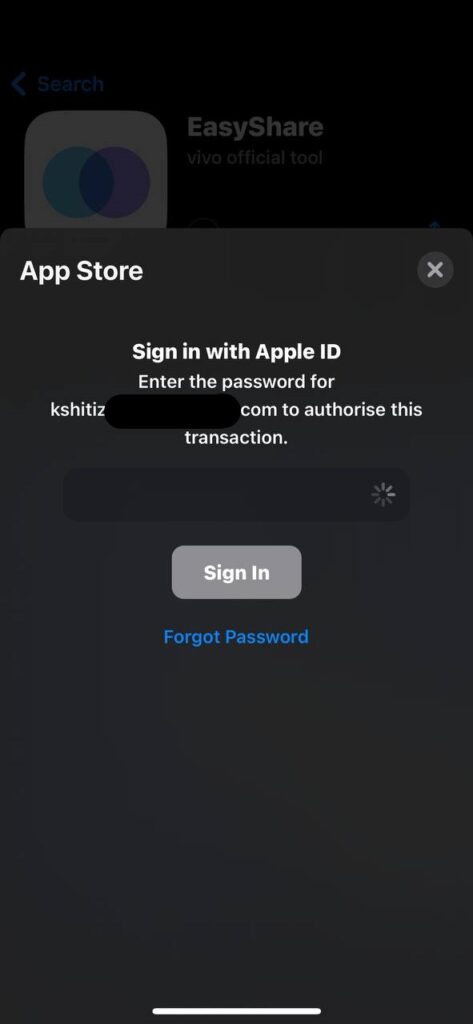
- First, you must download the EasyShare app from Google’s Play Store and Apple’s App Store.
- Later on, open the app and grant all the required permissions.
- Then, you have to click on Transfer File.
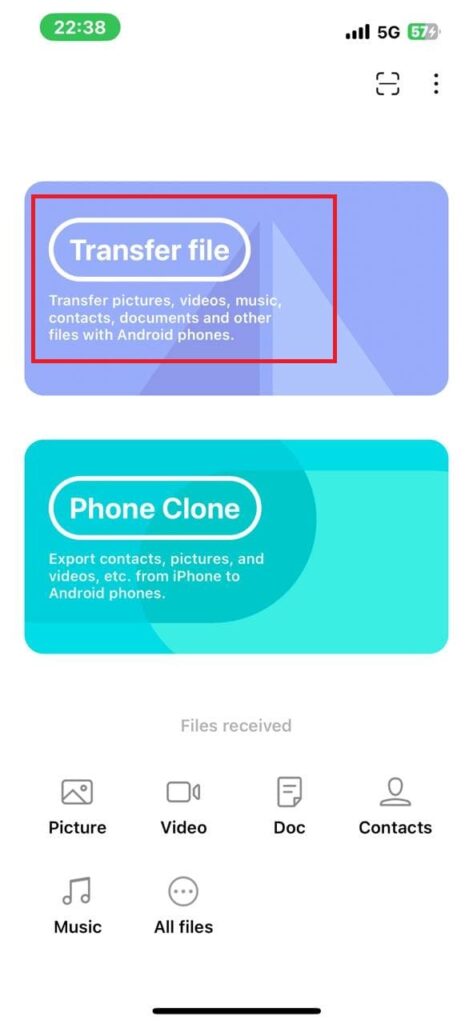
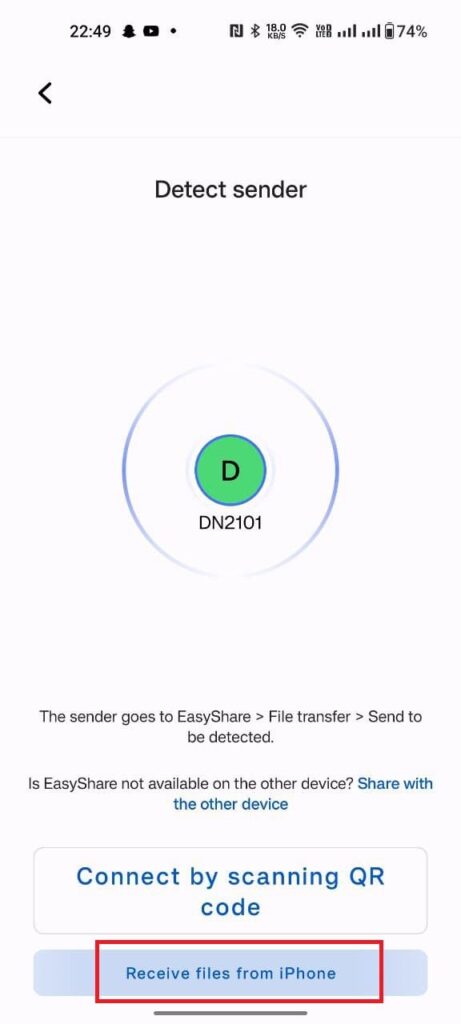
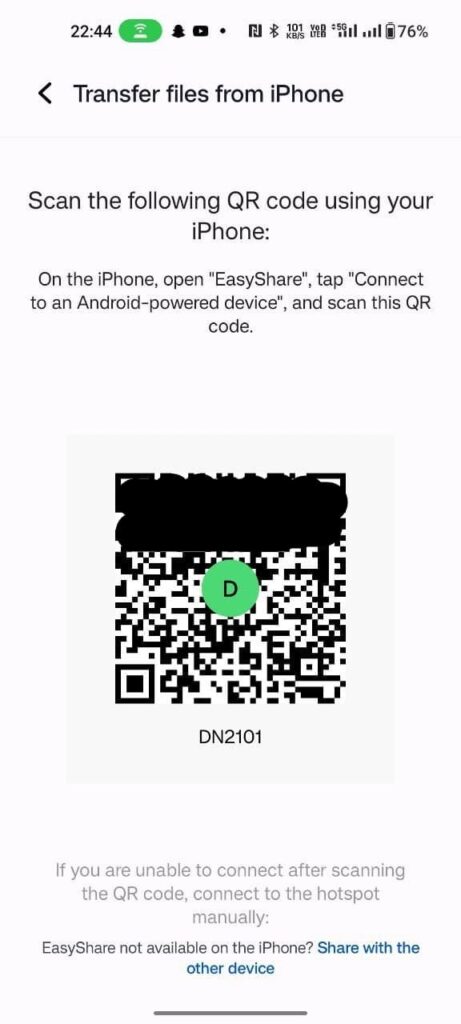
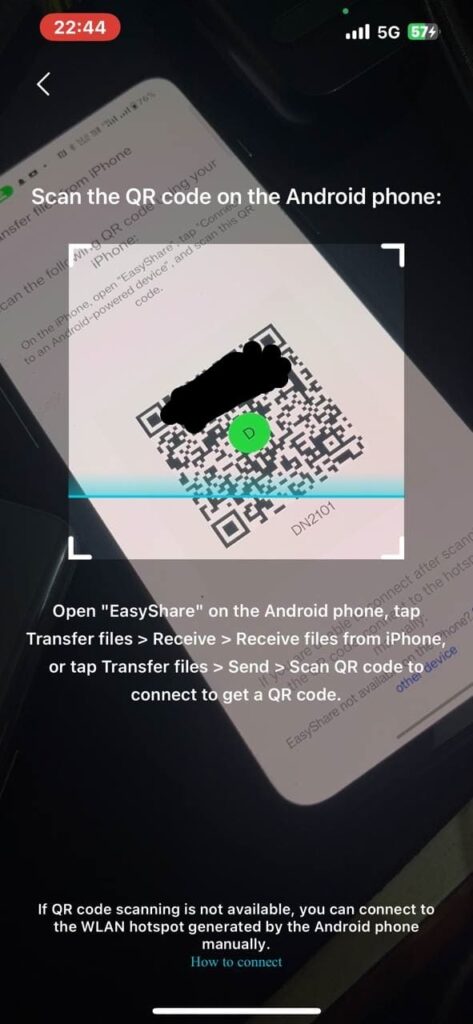
- After you click on Transfer File, you have to scan the QR Code on the other phone.
Note: Scan the code from your iPhone which is shown on your Android Phone.
To see the code, you have to tap the option which is shown in the image below:
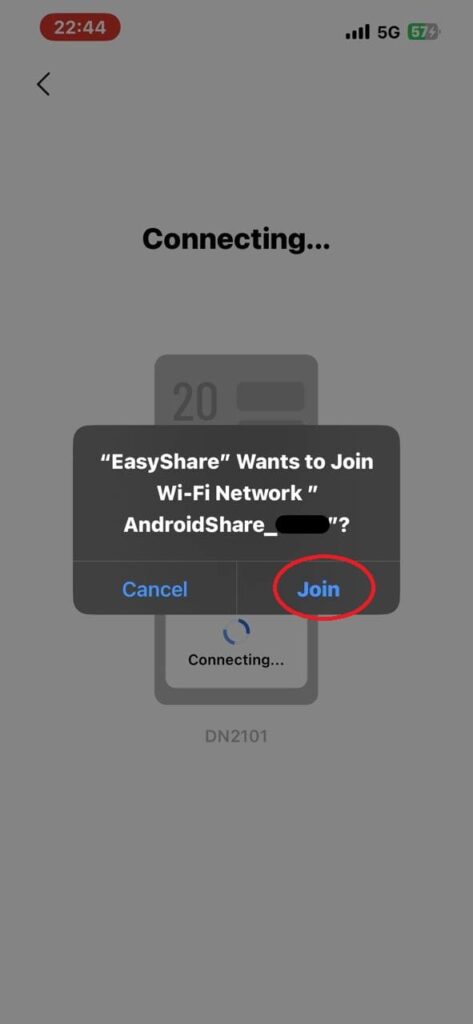
- Join the Network by clicking the Join button.
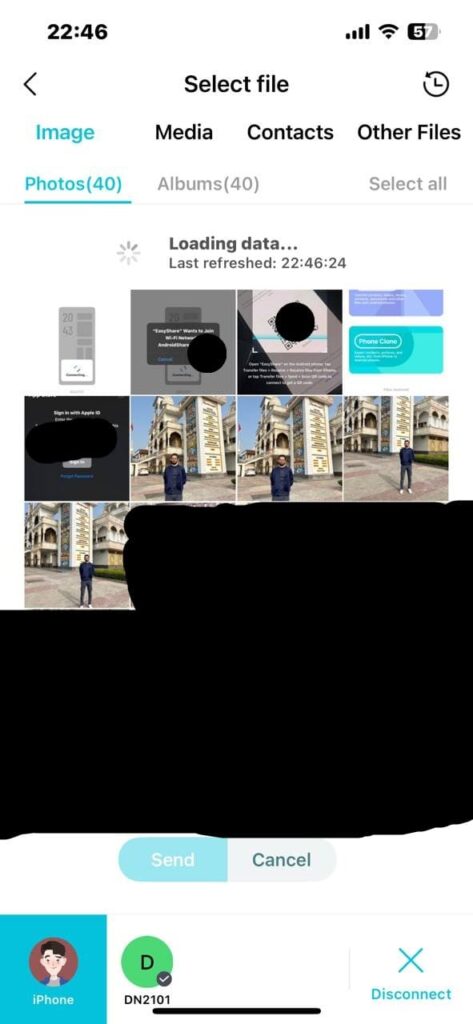
- Later on, you have to select the files that you want to send and click on the Send button present below the no. of the items, and items size.
- The file was sent successfully.
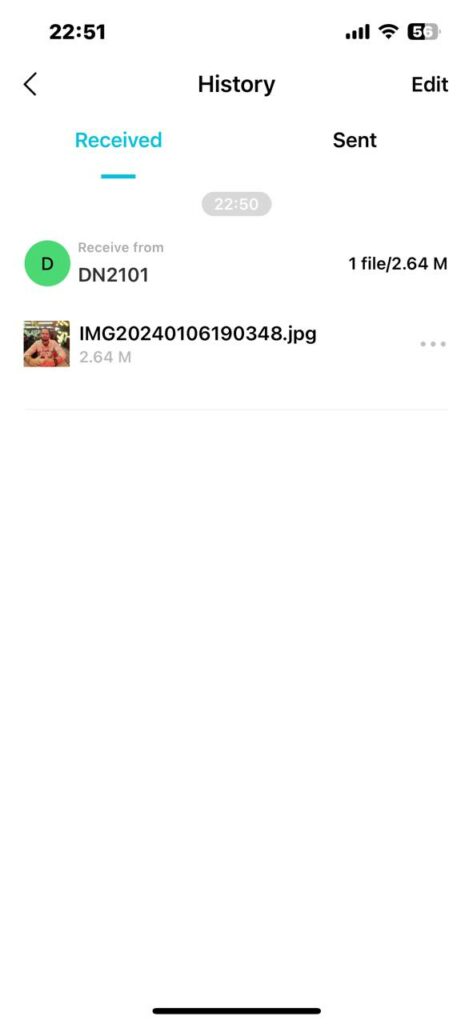
After sending or receiving the files, if you wish to disconnect, then you have to follow the steps listed below:
- To disconnect, you have to press the back arrow, presented above the left side of the History.
- Then, click on the disconnect button which is presented in the bottom right corner.
- Now, click on Confirm.
Do you use this method before? If yes, then let us know in the comment box. Also do tell us whether you like this post or not.
For More Such Updates Follow Us On – Telegram, Twitter, Google News, WhatsApp and Facebook